Here
is a tutorial mobile Alfresco:
Ipad, Iphone, Android.
using the OS:
OS
Android : iOS 6
Application : Alfresco 4.0e Community
----------------------------------------------------------
1. Install
app Alfresco
mobile : Ipad,
Iphone, Android from the App Store. These
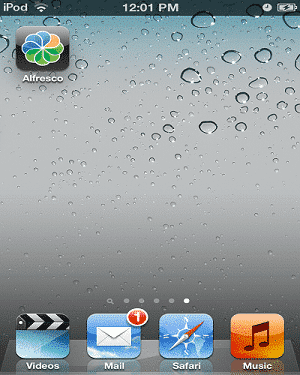
icons display on mobile IpadAlfresco:
2.
Open the Alfresco
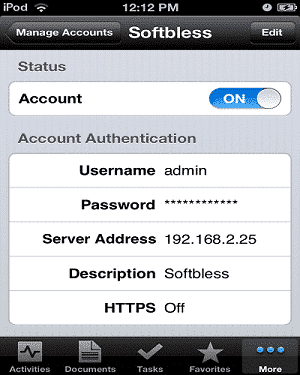
application, and then click More - Manage Account
to login to the server Alfresco
Username : admin
Password : *****
Server Address : 192.168.2.25
Description : Softbless (content may be anything, just labeling only)
HTTPS : OFF
Port : 80
Service Document : [Default]
3.
Then click Browse
Documents
Features
1.
Browse
Document
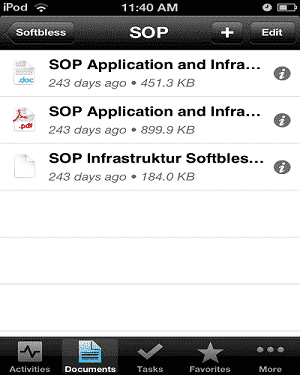
After doing the Manage
Account, click on the Documenttoolbar
button below to see the Alfrescorepository
2.
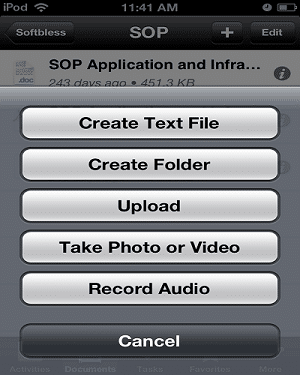
Create Folder Click
the + button on the upper right side, and then click Create Folder.
3.
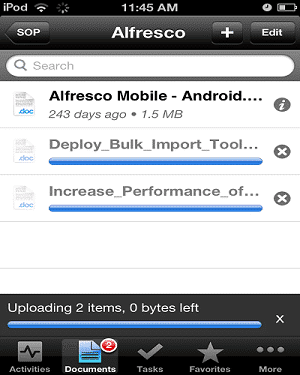
Upload Document
Click the + button on the upper right side, then to click Upload.
Upload
mutilpe documents:
4.
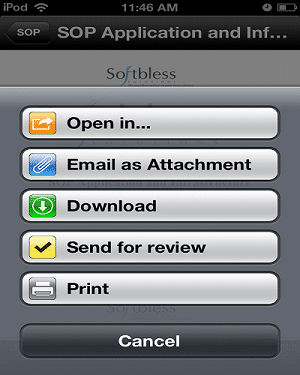
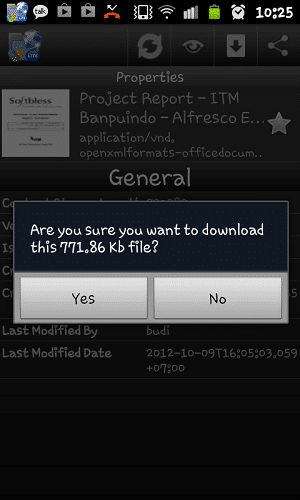
Download Document Click
the document you want to download,
then click the Action
button at the bottom far left and click Download:
5.
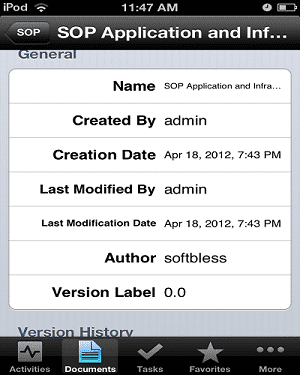
View Properties Browse the document,
then click the i button on the right side of the document. After
clicking i will be shown
properties of the document.
6.
Update Document Click
the document
you want to download,
then click the Action
button at the bottom of the left and then click Open in. Make sure
there is an editor for editing documents on your iPhone or iPad:
7.
Workflow
Click the document
you want to download,
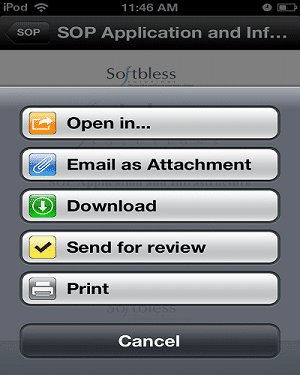
then click the Action
button at the bottom of the left and then click Send for review.
Then fill in:
• Choose Assignee
• Due on
• Email notification ON
8.
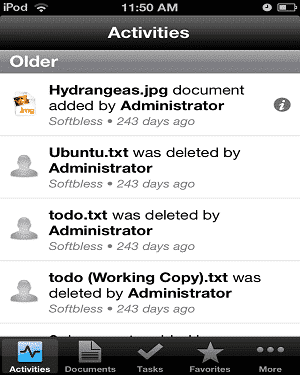
Activities To
view a user's activity,
click the button on the
toolbar below Avtivites
9.
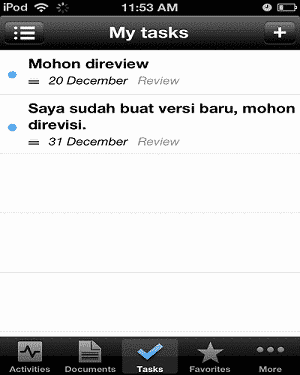
Task To
see the task
you need to do, click
the Tasks button on the toolbar
below
A few mobile Alfresco tutorial: Ipad, Iphone, Android.
If there are any questions and difficulties please contact us.
4.Copy mycompany folder into C:\Alfresco\tomcat\shared\classes\alfresco\extension\templates\webscripts\org
5.Copy custom-slingshot-application-context.xml to C:\Alfresco\tomcat\shared\classes\alfresco\web-extension folder.
Make sure same with below configurations:
<!--
Override Logout Controller
- to expire Alfresco tickets -->
In
the second week of October 2012, Alfresco launched
the new Alfresco
Community Edition, Alfresco 4.2a. Some
new features
available in Alfresco 4.2a, which are:
1.
Multi-File zip file processing and quick sharing This
feature will help the user use “share”
command and sharing their file which are being preview. In this
process, this feature will create a short link to sharing files
automatically. The users are also used multiple selection of their file
to process downloading. This process also supported by single zipped
package.
2.
Enhancing in Share Dashlets Some
new features in this facility are improvement in liquid layouts which
are more attractive, illustration of selection file address in image
subcategory, and improvement in lightbox facility layout.
Dashlets
New Layout
A
New Dashlets Tasks: A
new task in dashlets “filter all” previously, now in Alfresco 4.2a,
this tasks is dived into two categories, “active” and “completed”
category. Additional task is adding the number of page.
Editing
the content: Instead
of filtering task, there is dashlet conversion feature. These features
will split loading process, in order to increase displaying speed of
dashboard initial process.
3.
Better integration to google docs Now
the user in Alfresco 4.2a are able to create and edit their google docs
document in google docs service, easier and better integrated. The user
will used directly this system in real time and user activity in google
docs will be recorded.
4.
Springsurf 1.2 This
feature will help the user clearing their internet cache. The user no
needs to clear their recorded activity after they have internet
browsing (using “clear internet cache”). Alfresco 4.2a users directly
get this feature when they have installed this new Alfresco edition.
Therefore, the user no needs to busy clearing internet temporary cache
regularly.
In
addition, this feature is also help the user saving their drive
resources more capacity in their hardware. Some files are recorded as
temporary files in their hardware when they perform browsing the
internet, a great way of saving resources reducing.
Furthermore,
having RemoteClient feature configuration, some complete configuration
are able to perform. Some of these complete configurations are:
timeouts, buffer sizes, setting on http proxy, tcp configuration,
setting on white/black list of unsecure HTML when editing wiki page,
and inline preview of html.
5.
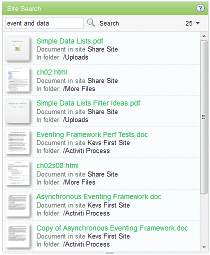
The new dashboard dashlets Site
searching: This
site searching feature of dashlets allows the user to find fts-Alfersco
search and directly can see a previewing page in the result of site
searching. The users are also able to configure previewing only related
sites. The picture below is a preview of the result site searching
features
Dashlets
of Site Search
Search
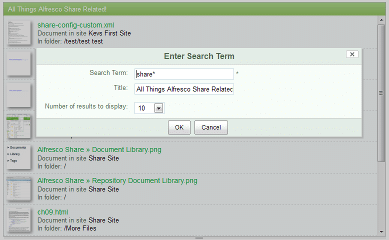
collection: This
feature is similar to site search, however query in this features of
saved search previously only addressed to site manager. Only site
manager is able to access this dashlet control panel. Where, filtering
process which only able performs by site manager, support in report
organizing. Therefore, fts-alfresco search syntax is fully supported
the user, especially to site manager. Dashlets title is also changed
into specific title from control panel, and then the user will easily
recognize what dashlet is reporting on.
Sample
preview of saved search feature
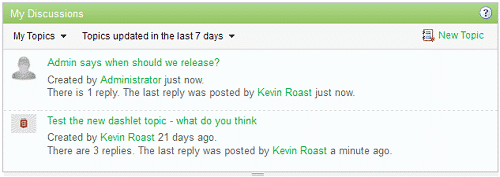
My
Discussion: Dashlet
dashboard is also able to display recent posting in the forum.
Consequently, the user will able to discuss, create, and reply the
posting quickly.
My
Discussion dashlets
6.
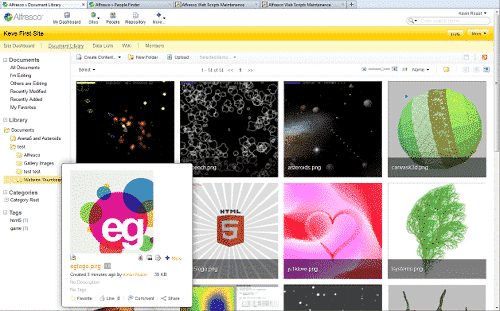
More variations in media galley or document library The
earlier version of image preview for gallery view features, now
available in document preview for document library. This new feature is
more interesting and attractive. This new view is support standard
feature for document library, such as multi file selection, uploading
process by drag and drop technique, and also additional new feature,
which is setting on document size view directly, thus the view is
dynamically view, especially in image size changing view in document
library.
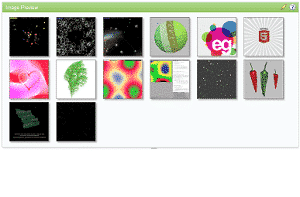
Preview
of Media Gallery
7.
Desktop dropbox synchronization or your enterprises Alfresco
is not only release their new feature for community user, but also
release Desktop Sync Client
in Alfresco
Community 4.2a, Alfresco
Enterprise or Alfresco cloud. Configuration in dropbox
service will be easily recognized by Alfresco user, mainly the new
feature of Alfresco Desktop Sync.
Summary
Alfresco is web based Enterprise Content Management/Document Management System, initiated by John Newton since 2005, one of the Documentum Co-founders. Alfresco has been entered into the Gartner Magic Quadrant for Enterprise Content Management category. Today Alfresco has been implemented in more than 5000 companies.
Alfresco is able to handle large-scale content management to millions of content. This training will equip participants about the concept of Enterprise Content Management, and the concept of Alfresco in particular, including the use and administration of Alfresco.
Schedule
Training will be held on : 2-3 Juli 2012 at 9AM-5PM
Location
Training will be held at PT Softbless Solutions office, Komp Perkantoran Mitra Matraman Blok A2 no 11, Jl Matraman Raya no 148, Jakarta Timur.
Facility
Participants will get manual, snack, lunch, and certificate from Softbless.
About trainer
Tiur Lumban Gaol, Softbless, is a Certified Alfresco Trainer, has 3 years experience in Enterprise Content Management implementantions including ELO Document Management System and Alfresco Enterprise Content Management System..
Togu Muara Sianturi, Softbless, has been involved in numerous projects Alfresco implementation, specializing in infrastructure configuration for Alfresco.
Investment
The training will cost Rp 3.250.000.
Capacity
Maximum capacity : 8 persons.
How to register
Fill in registration form on : https://www.softbless.com/content/Alfresco-training-registration
Softbless has released Indonesian Language Pack for Enterprise Content
Management
solution: Alfresco version 4.0D.
To download and try it, access: https://www.softbless.com/public-downloads/Alfresco-4.0D-Language-pack-Bahasa-Indonesia-Softbless.zip
In the zip file, there is also a manual for installation and usage.
If you find bugs or want to contribute to this translation, please contact us at info@softbless.com.
Server:
Linux Centos x64
Client: Windows 7
Application: Alfresco Community 4.0e
----------------------------------------------------------
1.
Download Alfresco
Sync desktop applications 2.
Install Alfresco
Sync desktop application 3.
After Alfresco
Sync desktop application installed, there will be AlfrescoSync
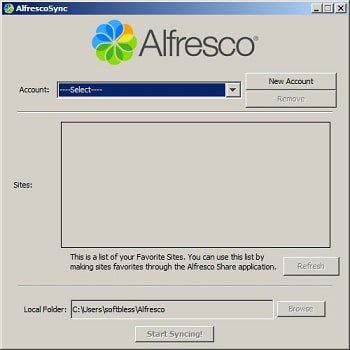
icon on the desktop. Double
click the icon AlfrescoSync, it will appear like the picture below:
4.
Create New Account.
Adjust with existing accounts in Alfresco. Role account
will be the same as the one on the Alfresco. If
the account is in the Consumer
Alfresco, the account is not in sync.
Minimal role is Contributor.
5.
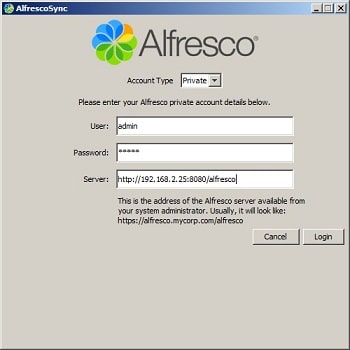
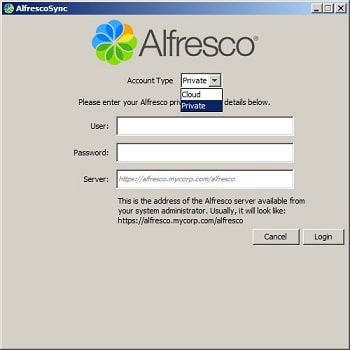
Select Private;
enter a username, password, and URL Alfresco
server. Username
and password in accordance with Alfresco. Then
click the Login
6.
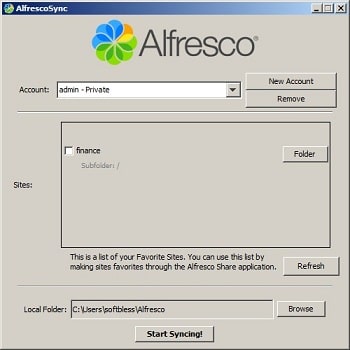
Make Sure the Alfresco already created a Site, such
as Site Finance. Then
Finance Site
will be sync with the Local Folder. One
account can also sync with 2 or more sites contained in Alfresco.
7.
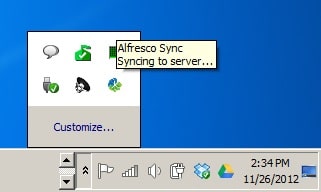
Icon AlfrescoSync also found in the System Tray
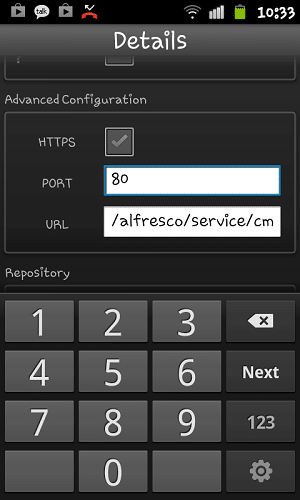
Advanced
Configuration
HTTPS: not checked
Port: 80
URL: /alfresco/service/cmis
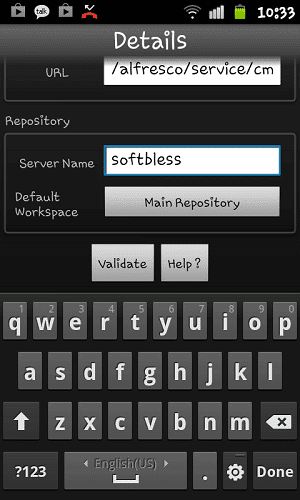
Repository
Repository Name: Type anything - it's a personnal label/id for your
server inside the application. Ex: softbless. "If it is not filled then
be validated because of the content of the repository name to empty".
Workspace: Main Repository
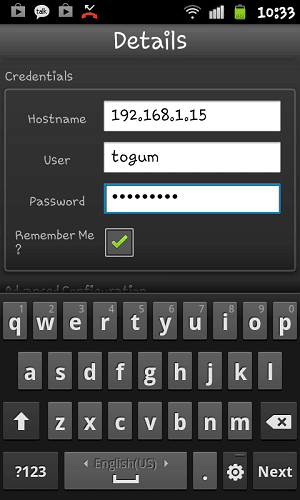
Credentials
Advanced
Configuration
Repository
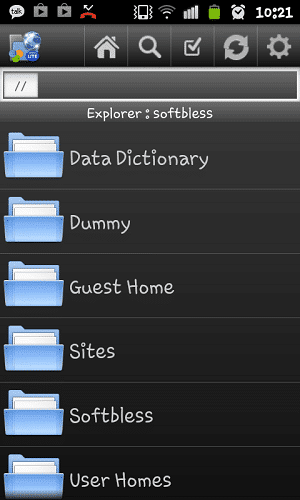
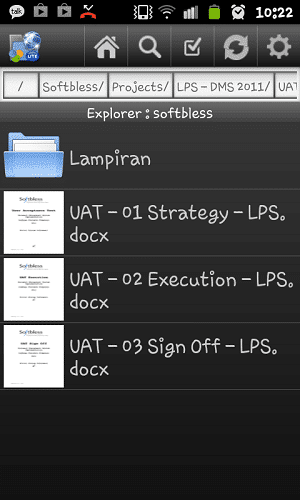
Browse Document.
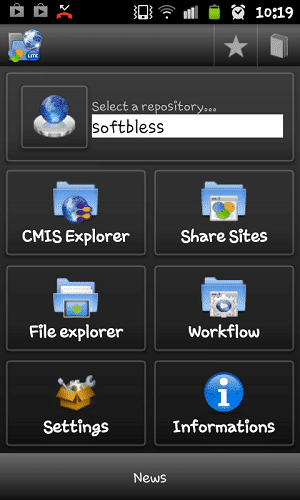
To view the contents of the Alfresco repository,
click the button CMIS
Explorer
View
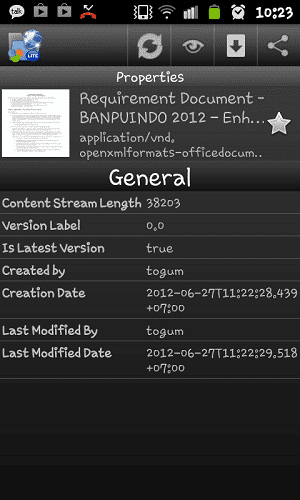
Properties. Click on the document if you want to see the metadata This
is an example of metadata from docx files
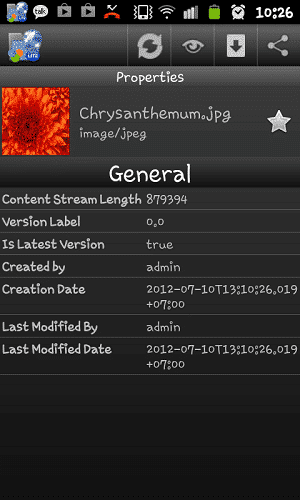
This
is an example of metadata from image files
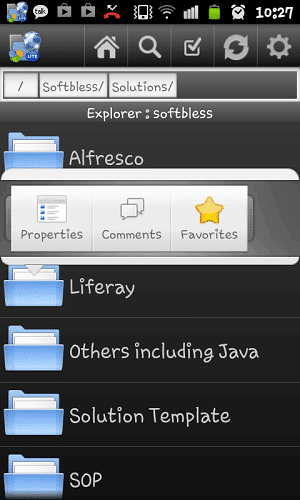
Actions
With
this application, you can view thumbnails of documents Ini
adalah contoh thumbnail dari file docx
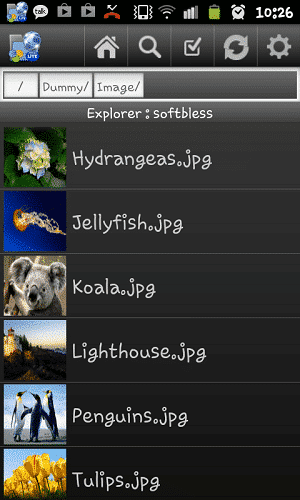
This
is an example of thumbnails from image files
How
to install and run the Android emulator?: 1.
Download adt-bundle-windows-x86_64 2.
Unzip the downloaded 3.
Open the folder adt-bundle-windows-x86_64 \ adt-bundle-windows \ eclipse 4.
Double click Eclipse.exe 5.
Browse repository workspace, and then click OK 6.
After Java -
ADT open, click the Windows Menu - Android
Virtual Device Manager 7.
Click New Fill
in the form according to the type of device you want to run:
AVD Name : Nexus
Device : 5.1" WVGA (480 x 800: mdpi)
Target : Android 4.2 - API Level 17
RAM : 512
VM Heap : 16
Internal Storage : 200 MiB
SD Card : 1 GiB 8.
Then click OK 9.
Select Nexus and click Start 10.
Emulators are loaded